How to turn notes into flashcards in StudySoda
Write focused question-and-answer cards, paste a prepared list, and review the deck before you start practicing.
AI-assisted writing. Feature steps checked against StudySoda’s current editor, study screens, and API contracts. Our editorial approach
Prepare one clear prompt and one answer per card. Paste a list to enter them faster, then check every pair before publishing.
Turn a paragraph into a question you can answer
Start with a short section of your notes. Pick out definitions, distinctions, conditions, and steps you need to recall. A card should ask something concrete: “What does principal mean?” is easier to assess than “Explain everything about loans.”
Avoid copying a paragraph onto each side. Put the question on the front and the minimum complete answer on the back. If an answer needs three unrelated ideas, split it into three cards. Keep enough context that the card still makes sense when shuffled.
For a calculation lesson, mix vocabulary with decisions: “When an annual rate is given, how do you express six months?” has the answer “6/12 year, or 0.5 year.” Keep long worked solutions in a reviewer or exam explanation. The card editor is for prepared content. To draft cards from a document, use the separate AI assistant, then check its output in the editor.
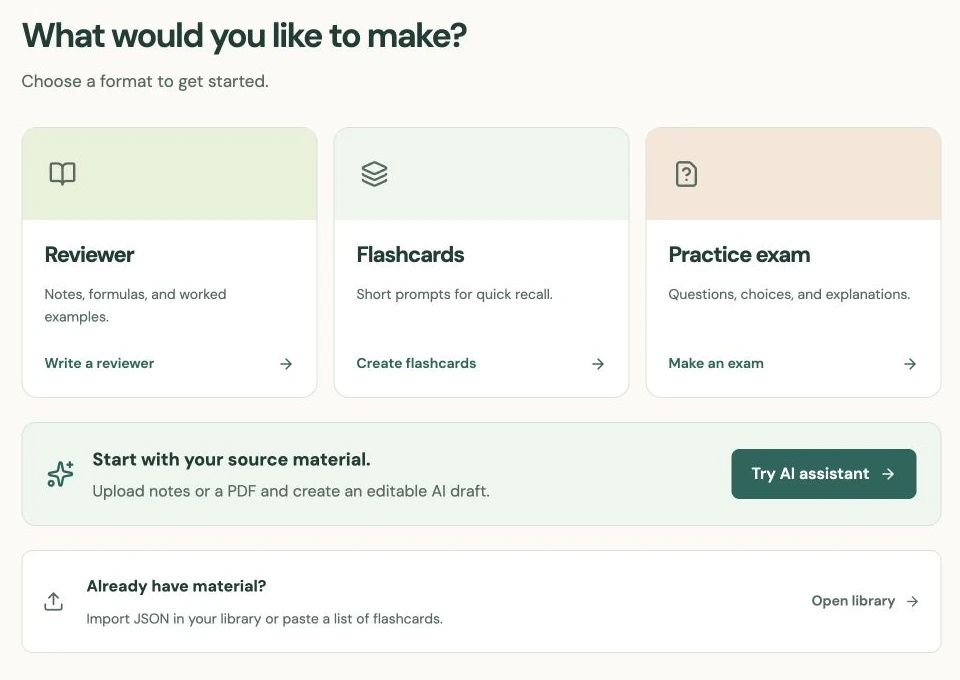
Add cards manually or use Paste a list
Open Create flashcards, give the deck a specific title, and enter a front and answer. Use Explanation & source when a short answer needs extra context or a source reference.
For several cards, choose Paste a list. Put one pair on each line, separated by a tab or by two colons:
Principal :: The original amount borrowed or invested.
Annual rate :: The interest rate for one year.
Six months in years :: 6/12 year, or 0.5 year.
Each nonblank line needs exactly one front and one answer. This is a two-column text format, not a general CSV import. Do not add a third column for explanations; add those in the individual cards afterward.
Review the pairs before moving on
Pasting adds cards to the deck and removes empty starter rows. It does not replace all existing cards or automatically remove duplicates. If you paste the same list twice, review and remove the duplicate cards before saving.
Read the fronts without looking at the answers. Check whether each prompt points to one answer and whether abbreviations need explaining. Review the backs for units, qualifications, and misleading shortcuts. “Interest is principal times rate” is incomplete when the time period can vary.
Use the card controls to reorder or remove items. Similar fronts with different answers can be especially confusing in Learn mode, which can use other cards’ answers as choices. Change “What is the rate?” to a more precise question rather than relying on its position in the deck.
Link the lesson, publish, and test the deck
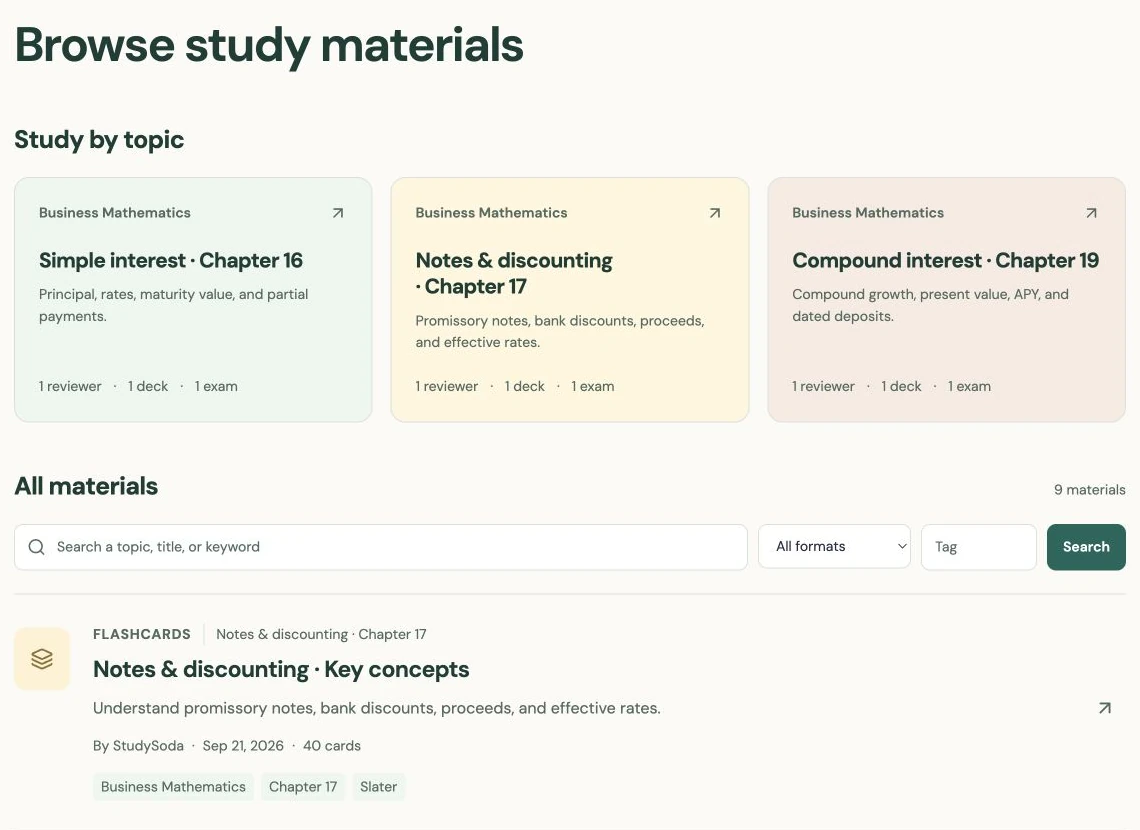
Continue to Review & publish. If this deck belongs with a reviewer or exam, assign the same topic. Matching titles or tags alone will not connect the materials.
Confirm visibility: new decks are Public by default; Pro allows Private. Check that any quotations or class details are appropriate for the audience you choose. Save the deck, open its study view, and try several cards in a shuffled order.
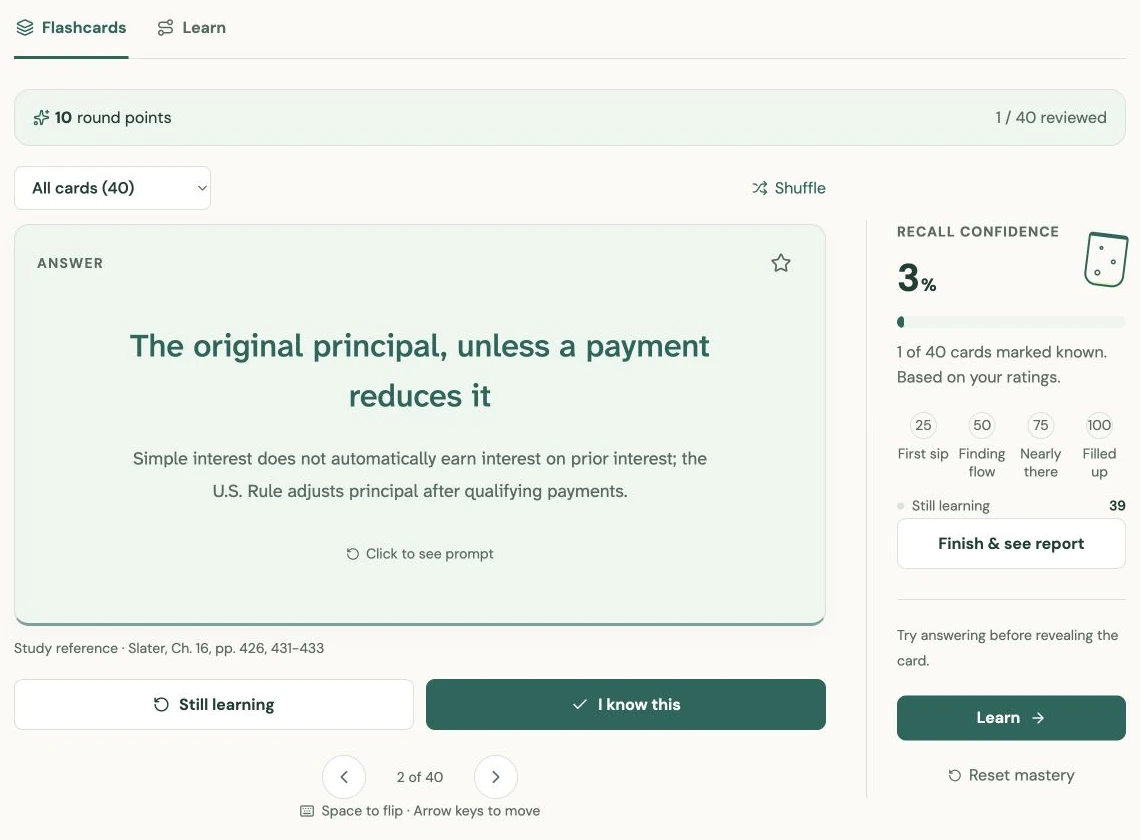
Reveal the answer before choosing I know this or Still learning. Use stars for cards you want to revisit separately. If an answer is ambiguous, edit the source deck rather than memorizing around the problem. A useful deck can begin small and grow as you identify specific gaps; the number of cards is less important than how clearly each card tests something.
Put it into practice.
Create flashcardsFurther help
- Flashcard editor
Manual cards, two-column paste, explanations, and source fields.
- Flashcards and Learn
What known cards, stars, and repeat practice mean in StudySoda.