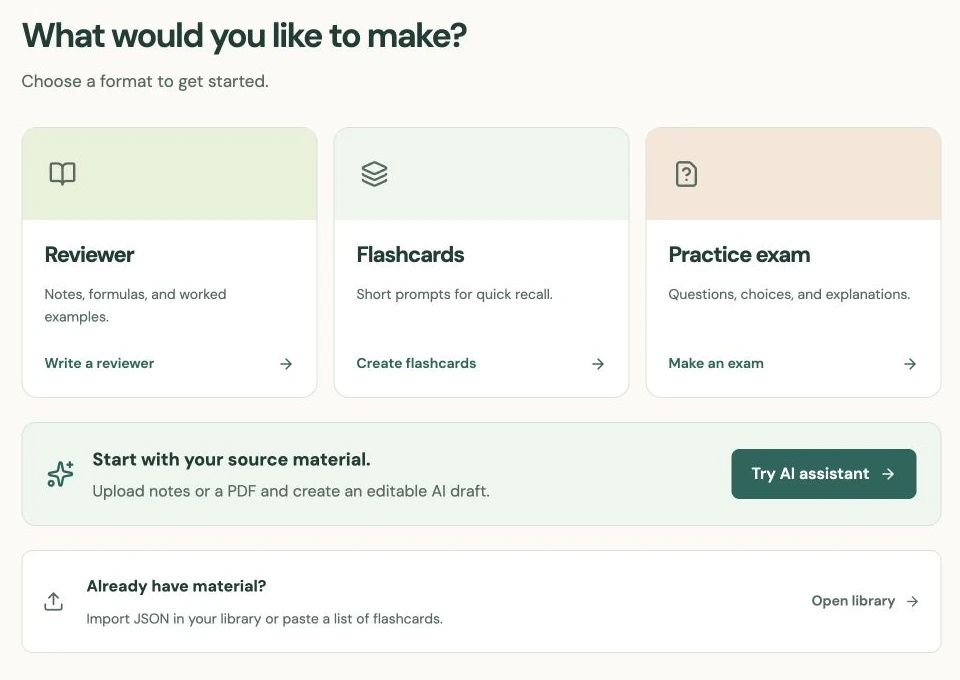
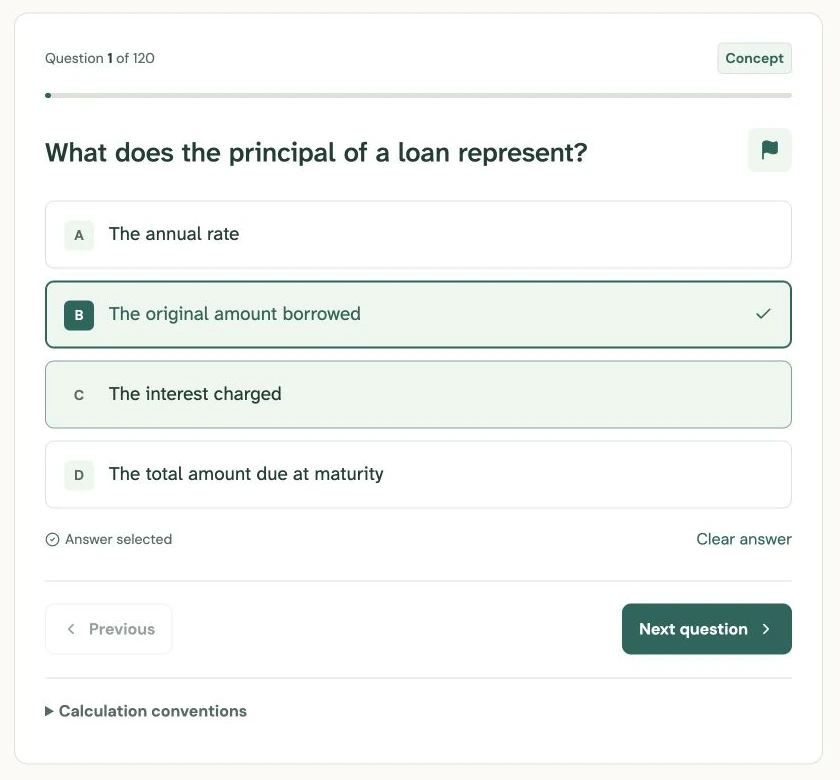
Keep a reviewer, flashcards, and an exam in one topic
Use Topics to connect the three formats of a lesson, with clear links between reading, recall, and practice.
AI-assisted writing. Feature steps checked against StudySoda’s current editor, study screens, and API contracts. Our editorial approach
A topic is an explicit connection between separate materials. Put all versions of a lesson in the same topic so learners can move between them.
Use a subject for the course and a topic for the lesson
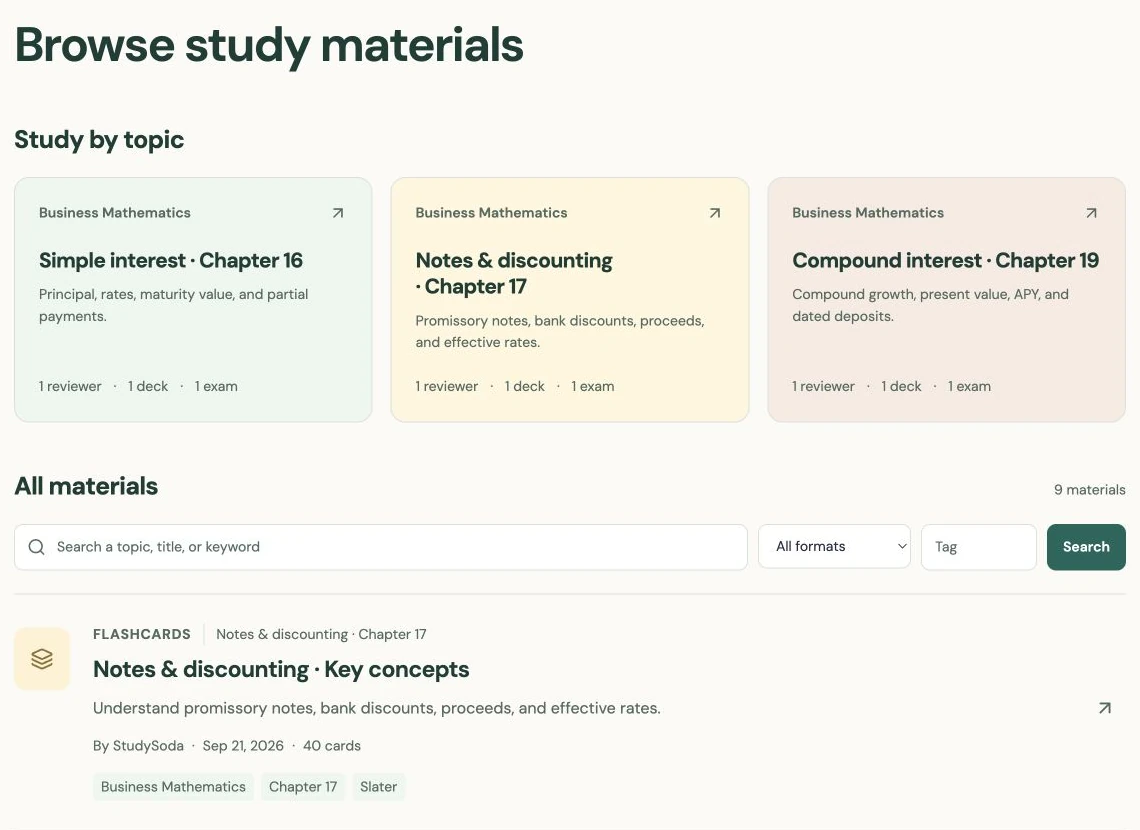
A subject can hold a broad course such as Business Mathematics. A topic can hold a focused lesson such as Simple interest. Inside that topic, a reviewer explains the method, flashcards test recall, and an exam provides practice questions.
These remain three separate materials. Connecting them does not merge their contents, generate missing versions, or keep their wording synchronized. You can improve an explanation in the reviewer without changing an exam that uses the same topic.
Choose a boundary that a learner would recognize. “Chapter 16: Simple interest” is useful if your class follows that chapter. A topic called “Everything for finals” may be too broad to make the study links helpful. Use the description to state the coverage or source rather than putting every detail in the title.
Create the topic once, then add its formats
In Library, open Topics and choose New topic. Enter a title, an optional description, and a subject if you have one. Open the topic’s management page to add a reviewer, flashcards, or an exam with the topic already selected.
Write and publish each material using its own editor. A lesson does not need all three formats before it is useful. Start with the reviewer if you are still organizing the explanation, or start with cards if you already have a concise list of questions and answers.
For an existing material you own, open its editor and choose the topic in Review & publish. You can also create a topic from that part of the editor. Check the selected topic before saving, especially when several lessons have similar names.
Use explicit membership to make the links appear
StudySoda’s Study this topic links come from the saved topic assignment. Matching titles, tags, or subjects does not establish the relationship. If a deck is missing from the lesson’s links, check its topic field before changing its title.
The compact study navigation shows available companions by format, with up to three of the newest visible companions in each format. Open the topic page to browse the full collection. Missing formats are not invented: if no exam has been created and linked, there is no exam version to open.
A topic’s subject also keeps its materials organized consistently. If you need to move a populated topic to a different subject, first resolve its existing material assignments; the application prevents conflicting subject membership rather than silently moving a whole collection.
Check the topic as the intended audience
Each material keeps its own visibility. Your topic can contain public materials and your private Pro materials, but another visitor sees only the public portion. Private titles and counts are not a way to advertise hidden content. A topic with public material can itself be publicly discoverable, so avoid private information in its title or description.
Open a public material while signed out to check the public route through the lesson. A public copy made by another person is their separate material; it does not automatically join your topic or follow future edits.
Removing a topic detaches its materials instead of deleting them. Their content and visibility remain. Deleting an individual material is a different action with different consequences, so use the topic’s remove action when your goal is only to undo the grouping.
Put it into practice.
Open TopicsFurther help
- Topics
Create, manage, and add materials to your own topics.
- Subjects and organization
How course-level subjects differ from lesson-level topics.