Create an AI study draft from your own sources
Choose source text, set the format and question mix, then review the result before anything is published.
AI-assisted writing. Feature steps checked against StudySoda’s current editor, study screens, and API contracts. Our editorial approach
Specify the lesson and constraints first. AI can draft the structure, but you decide whether the facts, answers, and publication settings are correct.
Start with a source you can check
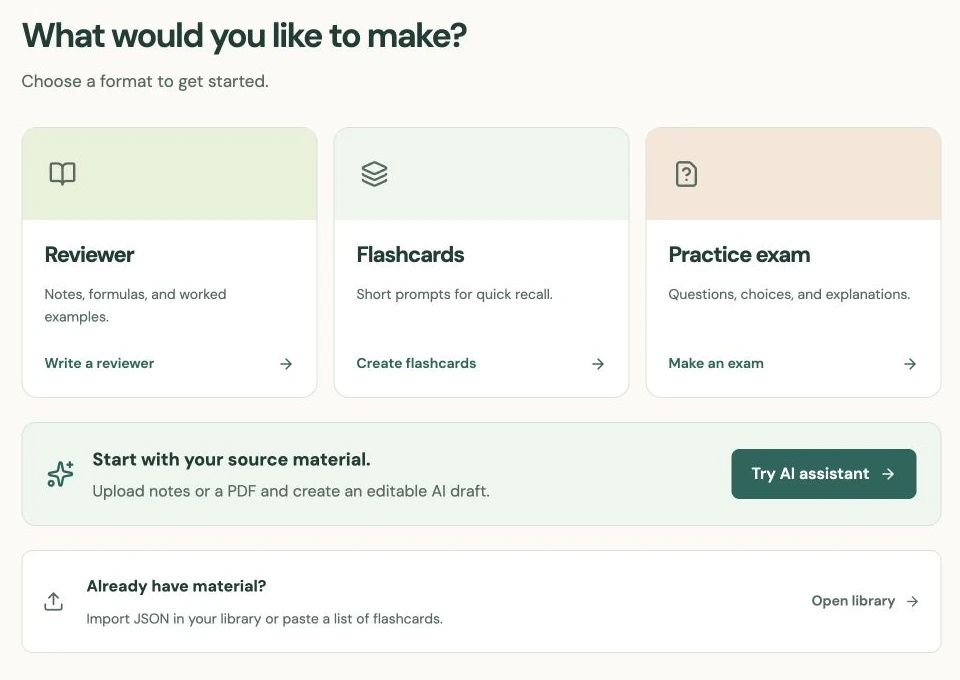
Sign in, choose Create, then Create with AI. Check its availability and remaining allowance before preparing a large request. An installation may need provider setup, or its administrator may limit access. Manual creation and notebook writing remain separate options.
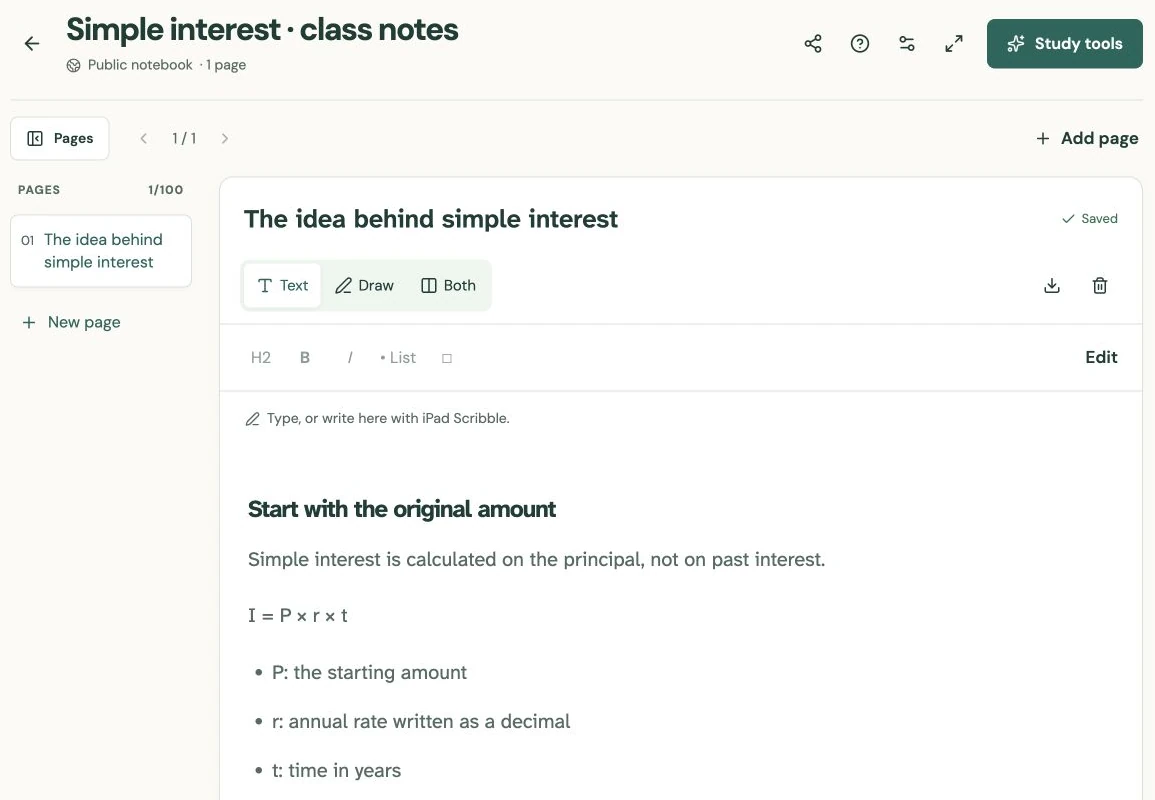
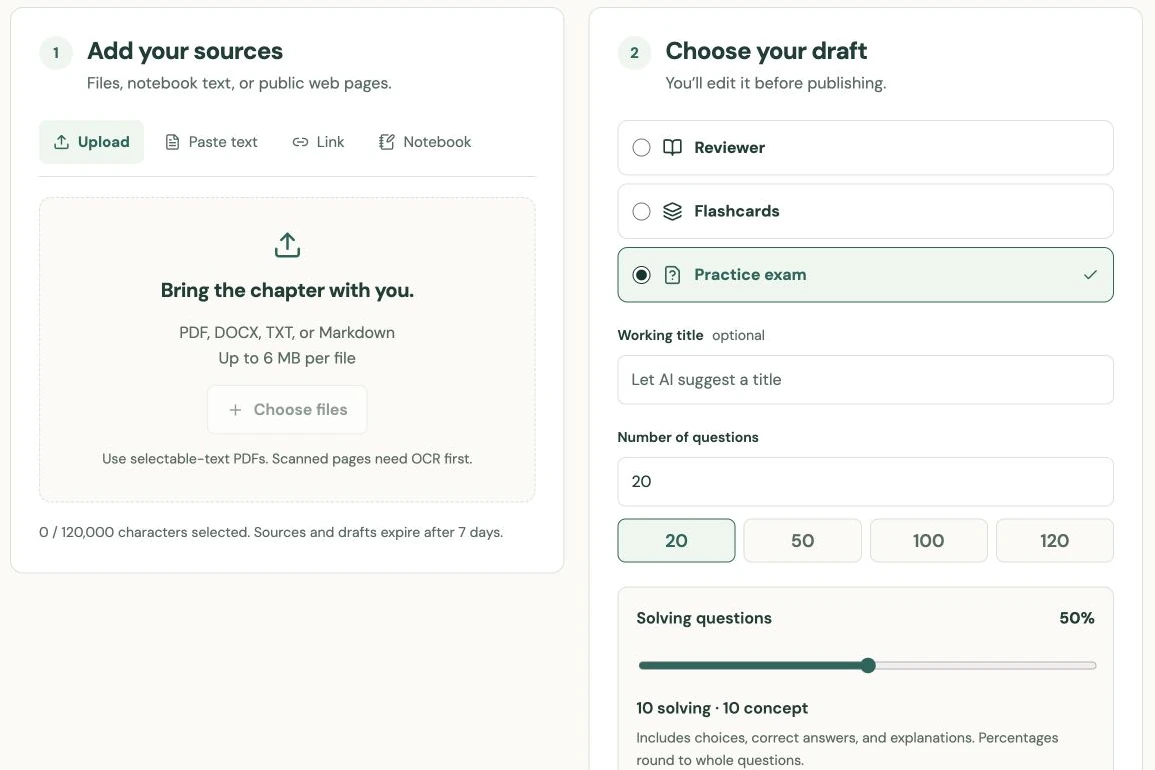
Add a supported file, paste text, or enter a public HTTPS text-page URL. The Notebook option links to your notebooks, where you choose which page text to send. Selected source text goes to the configured AI service, so use material you have permission to share and remove personal details you do not need.
Select only the sources for the current lesson. If two documents use different day-count conventions, label that distinction in the source and instructions instead of expecting the draft to infer which one applies.
Set the format and a manageable size
Choose Reviewer, Flashcards, or Exam under Choose your draft. A reviewer suits explanations and worked methods. Flashcards suit one question or definition per card. An exam suits a complete attempt followed by feedback.
For cards or an exam, enter the requested number. Begin with a set you can fully check, rather than the largest supported count. A short source cannot support dozens of distinct, useful questions simply because a large number was entered.
For an exam, set Solving questions to balance calculations and concepts. A 20-question draft at 40% requests eight solving questions and twelve concept questions. The interface shows the rounded whole-question split. This controls the requested mix, not a guarantee that every generated question will be well classified or correct.
Give instructions that change the result
Open Customize draft and use Additional instructions for scope, conventions, and the kind of reasoning you want. For example: “Use only the simple-interest section. Use annual rates and months converted to years. Show substitution and units. Include mistakes involving interest versus maturity value.”
Keep the exact count and solving mix in their dedicated controls so the request is consistent. Do not ask for unrelated topics absent from the selected sources. If a source leaves a convention unstated, add the missing reference or ask for the uncertainty to be identified instead of guessed.
An optional working title helps distinguish drafts in your list. A title such as “Chapter 16: time conversions” is more useful later than “New AI quiz,” especially when several jobs are running or waiting for review.
Review the draft before publishing
Choose Generate draft once the sources and settings are ready. You can leave the page and return to Create with AI to check progress. A completed job offers Review in editor; completion alone does not publish a material.
Read every explanation and test each answer key. For numerical questions, solve independently before checking the selected option. Remove duplicates, unsupported claims, and questions whose choices reveal the answer without testing the lesson. The draft-review checklist gives a concrete order for this pass.
Check visibility in Review & publish. New materials default to Public; Private requires Pro. Sources and generated drafts have a retention window shown in the assistant, so save the finished material deliberately. Deleting an AI draft does not remove materials you already published from it.
Put it into practice.
Create with AIFurther help
- Create with AI
Available formats, source limits, allowance, and job status.
- Manual creation
Create or correct the content yourself when generation is unavailable.