Prepare PDFs, documents, and links for AI study tools
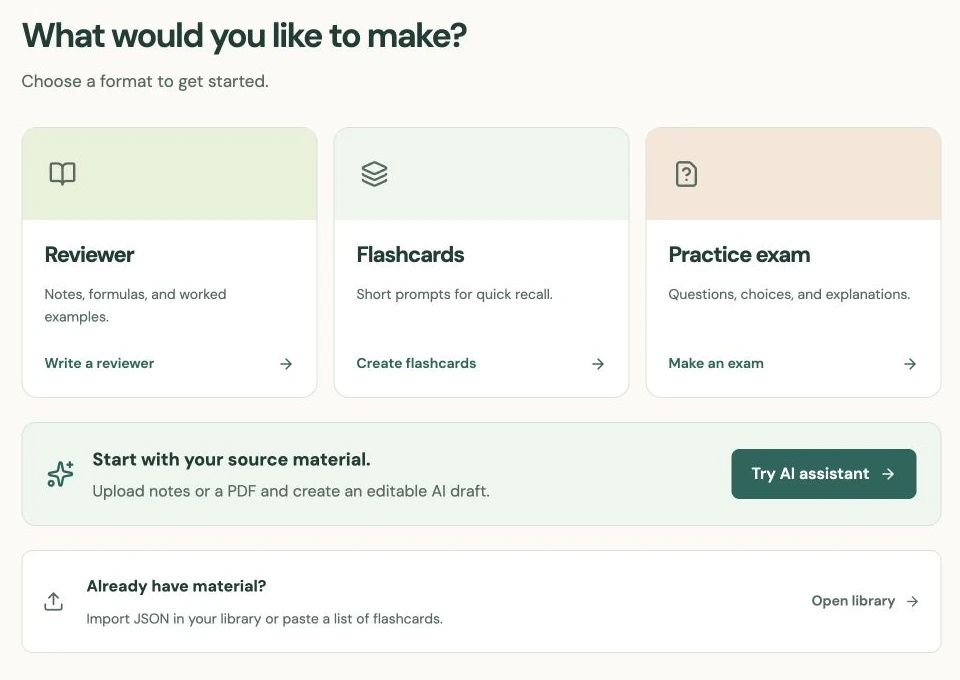
Make the source text readable before asking for a reviewer, flashcards, or a practice exam.
AI-assisted writing. Feature steps checked against StudySoda’s current editor, study screens, and API contracts. Our editorial approach
A file that looks clear on screen can still contain incomplete or scrambled text. Check one representative passage before generating a draft.
Check whether the words are actually text
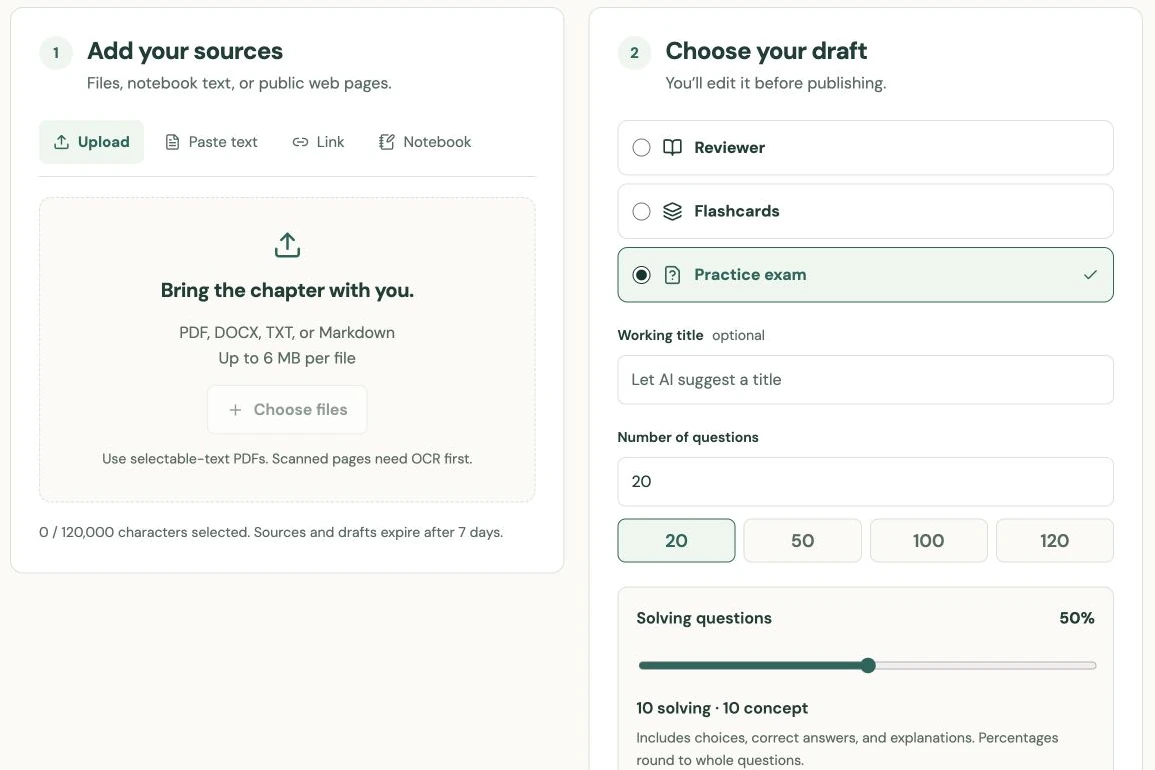
The AI assistant accepts PDF, DOCX, TXT, and Markdown sources. For a PDF, try selecting and copying a paragraph into a plain text field first. If the page behaves like a single photograph, it needs OCR outside StudySoda before it can serve as a useful text source.
StudySoda does not promise to read scanned handwriting, diagrams, or equations that exist only as images. A PDF with selectable headings may still have its important formulas embedded as pictures. Test the formula and the surrounding explanation, not just the chapter title.
If copying gives broken symbols or interleaves two columns, prepare a clean text excerpt yourself. For example, write “I = P × r × t, with t in years” instead of leaving the draft to reconstruct an unreadable formula.
Keep the source focused and complete
Choose the section needed for one study goal. Include definitions, relevant exceptions, worked steps, and the page or chapter reference. Omit repeated running headers, navigation menus, unrelated chapters, and answer lists without their questions.
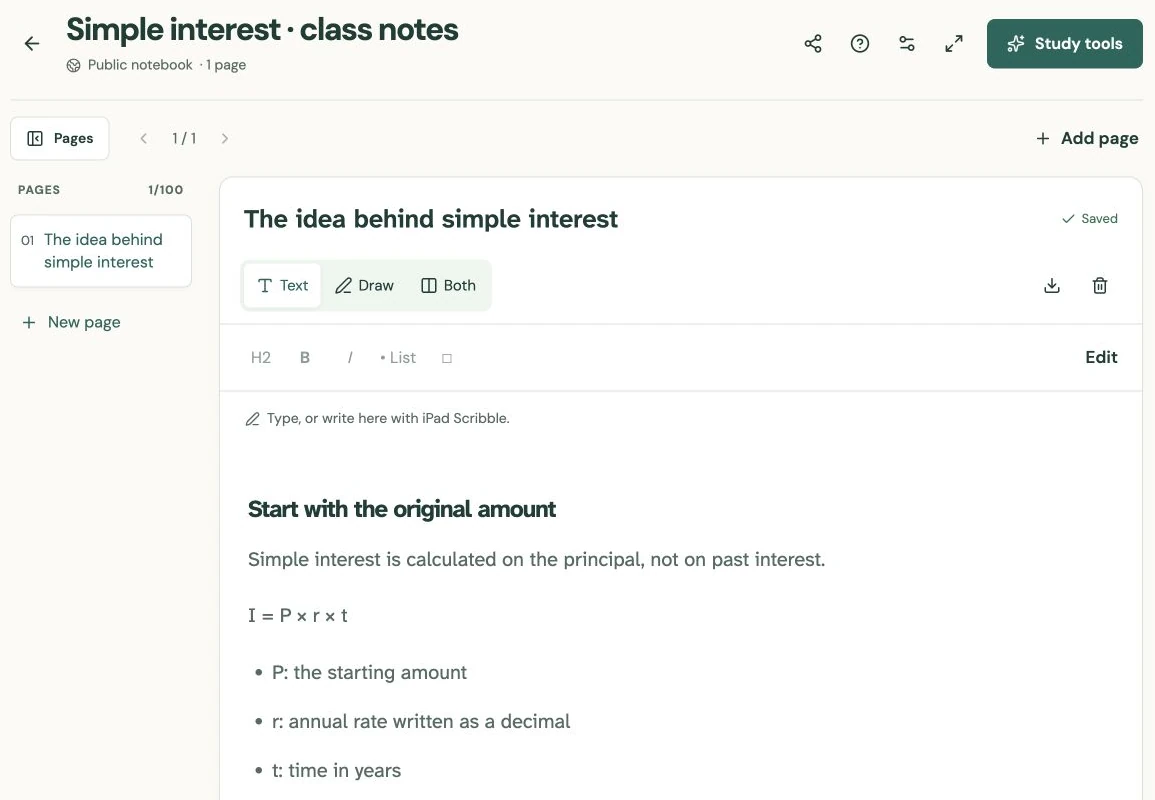
A useful simple-interest source would contain the meaning of principal, the annual rate convention, time conversion, and one full calculation. Sending only the final formula loses the information that distinguishes 90/360 from 90/365. Sending an entire unrelated textbook adds noise and makes checking slower.
Use files you are allowed to process and share with the configured AI service. Remove student names, grades, account details, and private comments before uploading. Keep your original separately; the assistant’s source storage has a retention window and is not a document archive.
Handle links and tables deliberately
The URL option accepts public HTTPS text pages. A sign-in page, restricted course portal, or video link is not a supported substitute for accessible source text. When permitted, paste the relevant passage instead of relying on a link that the service cannot read.
For tables, check that each value still has its row label, column label, and unit. A list of amounts without dates or rate labels is ambiguous after extraction. If necessary, rewrite a small table as sentences: “At six months, the maturity value is $3,120.”
Keep citations in the source so you can trace the generated explanation back to its reference. This does not make the AI output verified or grant permission to republish the original. It gives you a practical route for checking the draft later.
Confirm the selection before generation
After adding a source, confirm its title and character count in the source list, then select it for the draft. The assistant displays selected-source and combined-text limits. If a request exceeds a limit, reduce the scope rather than cutting off the explanation halfway through a worked example.
Use two sources only when they add a clear benefit, such as class notes plus a corrected example. Explain any differences between them under Customize draft → Additional instructions. Contradictory definitions do not become reliable simply by appearing in the same request.
Generate a small first draft and compare it with the original passage. Missing conditions, strange symbols, or invented transitions may indicate a source problem rather than a writing problem. Fix the source and create a fresh draft when necessary; use the editor for ordinary wording and formatting corrections.
Put it into practice.
Add study sourcesFurther help
- Add sources in Create with AI
Supported formats and current limits are shown before submission.
- Check a generated draft
Verify source fidelity, calculations, and answer keys.